


How to Create an Invoice in Word
10min read
|
Sep 30, 2026
If you bill clients, you need invoices that look professional and get paid on time. Microsoft Word is already on most computers, making it a natural starting point for freelancers and small service businesses. This guide covers how to create an invoice in Word from start to finish — required fields, templates, building from scratch, saving as PDF, numbering strategies, common pitfalls, and when to switch to dedicated invoicing software.
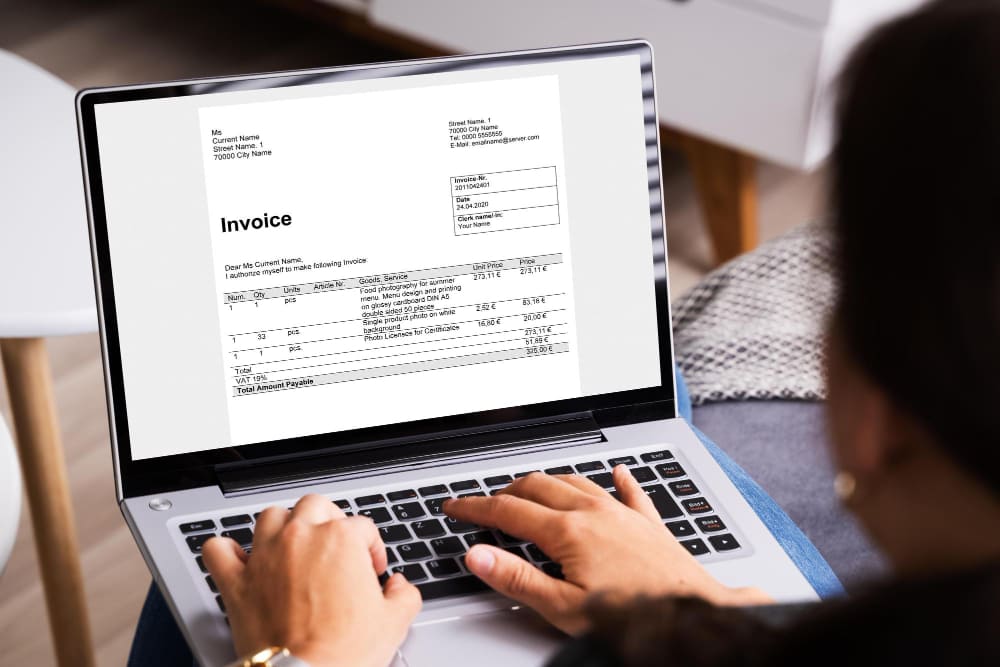
What a Word Invoice Needs Before You Start
Before opening Word, gather the details every invoice needs. Skipping fields is the most common reason invoices get delayed or bounced back by a client's accounts payable team. The table below is a checklist for every invoice you send.
| Field | Why It Matters | Required / Optional |
|---|---|---|
| Your business name and contact details | The client needs to know who is billing them and how to reach you with questions. | Required |
| Client name and billing address | Ensures the invoice reaches the right person or department for payment processing. | Required |
| Invoice number | Unique identifier for tracking, bookkeeping, and tax records. Without it, payment matching fails. | Required |
| Invoice date and due date | Establishes when payment is expected and starts the clock on your payment terms. | Required |
| Description of goods or services | Tells the client exactly what they are paying for, reducing back-and-forth queries. | Required |
| Quantity, unit price, and line totals | Shows the math behind each charge so the client can verify before approving. | Required |
| Subtotal, tax, and total amount due | Provides the final amount payable, including any applicable taxes. | Required |
| Payment terms (e.g., Net 30) | Clarifies how long the client has to pay and any late payment penalties. | Required |
| Payment methods accepted | Tells the client how to pay — bank transfer, card, online link — so there is no friction. | Required |
| Purchase order (PO) number | Many corporate clients require this to process payment. Without it, the invoice may be rejected. | Optional |
| Your logo and brand colors | Reinforces professionalism and brand identity, but is not strictly necessary. | Optional |
How to Create an Invoice from a Word Template
Word ships with several built-in invoice templates. Using one is the fastest way to produce a clean, professional invoice — the templates already have tables, fields, and formatting set up, so you just fill in your details.
Step 1 — Open Word and access templates: Click File > New. In the search bar, type "invoice" and press Enter to browse templates from Microsoft's online library.
Step 2 — Pick a template: Click any template to preview it. Choose one that fits your style — some are minimalist, others have color accents. Click Create to download and open it.
Step 3 — Customize the header: Replace the placeholder business name, address, phone, and email with your own. Click the logo placeholder (if present) and use Insert > Pictures to add your logo. Resize by dragging corner handles while holding Shift.
Step 4 — Fill in the invoice body: Enter the client's name and address, invoice number, dates, and line items (description, quantity, unit price). Let the template calculate the amount column if it has a formula — otherwise type it manually.
Step 5 — Adjust payment details: Update payment terms, bank transfer details, or online payment link. Remove fields you do not need, but keep the essentials from the checklist above.
Step 6 — Save your work: Click File > Save As and save as a .docx (your editable master). Then save a second copy as PDF for sending — covered below.
Save a blank copy of your customized template as a master file. Reuse it for every invoice to save time and keep branding consistent.
How to Build an Invoice in Word from Scratch
If none of the built-in templates suit your needs, building from scratch gives you full control over layout and design. It takes longer the first time, but you get a document tailored to your business.
Set Up the Page and Header
Open a blank document. Go to Layout > Margins and choose Narrow margins for more usable space. At the top of the page, type your business name in a large font (18–24pt), then your address, phone, and email below in a smaller font (10–11pt). Press Enter twice, then add a centered title like "INVOICE" in bold.
Insert the Line Items Table
This is the core of your invoice. Go to Insert > Table and select a 4-column by 5-row grid to start. You can add rows later. In the top row, type these column headers: Description, Qty, Unit Price, Amount. Make that header row bold and give it light gray shading using Table Design > Shading.
Below the header, enter each line item. For the Amount column, type the quantity multiplied by the unit price. If you want Word to calculate automatically, click in the Amount cell, go to Table Tools > Layout > Formula, and enter =B2*C2 (adjusting cell references to match your table). Repeat for each row.
Add Subtotal, Tax, and Total Rows
After the last line item, add three rows at the bottom of the table. Label the first "Subtotal" and use a formula like =SUM(D2:D10) to add up the Amount column. Label the second "Tax" and either type a percentage or calculate it as =D11*0.08 (replace 0.08 with your local tax rate). Label the third "Total Due" and calculate it as =D11+D12. Make the Total Due row bold with distinct shading so it stands out.
Add Your Logo and Client Details
To add a logo, place your cursor in the header area, go to Insert > Pictures, and select your logo file. Below the logo or in the top-right corner, add the client's name, company, and billing address. Also include invoice number, invoice date, and due date here — these can go in a small two-column table for alignment.
Layout Tips for a Professional Look
Use a clean sans-serif font like Calibri or Arial at 11pt. Align currency values to the right within their cells. Leave generous white space between sections so the invoice does not feel cramped. Add a "Notes" or "Payment Terms" section below the table for additional information. Finally, proofread every number — a typo in a total can delay payment by weeks.
Save and Send Your Word Invoice as a PDF
Once your invoice looks right, send it as a PDF, not a .docx. PDFs preserve formatting exactly, cannot be accidentally edited by the client, and are universally viewable. Sending a .docx risks tables shifting, fonts changing, or the client modifying the total.
To save as PDF: Click File > Save As, choose your destination folder, and in the "Save as type" dropdown, select PDF (*.pdf). Click Save. Word will generate a PDF that matches your document layout precisely.
Use a consistent file naming convention so invoices are easy to find. A good pattern is Invoice_00123_ClientName_2026-10-15.pdf — the number, client, and date make files sortable and searchable. Avoid generic names like "invoice.pdf" because you will lose track of which client received which version.
Email Body Template for Sending Invoices
When emailing the PDF, keep the message short and clear. Here is a template you can adapt:
Subject: Invoice #00123 from [Your Business Name] — Due [Due Date]
Hi [Client First Name],
Please find attached Invoice #00123 for [brief description of work], dated [Invoice Date]. The total amount due is $[Total], payable by [Due Date].
Payment can be made via [bank transfer / online link / card]. Details are on the invoice.
Please let me know if you have any questions.
Best regards, [Your Name]
Attach the PDF before you hit send, and double-check the invoice number and amount match what is in the document.
Invoice Numbering and Tracking in Word
Invoice numbers are your primary tool for tracking who has paid, who is overdue, and how much revenue you have earned. Word does not auto-generate invoice numbers, so you need a system. The table below compares the three most common numbering patterns.
| Pattern | Example | Best For | Pros & Cons |
|---|---|---|---|
| Sequential | 001, 002, 003... | Solo freelancers and small businesses with a single client base. | Simple to maintain. Hard to identify client or year at a glance. |
| Year-based | 2026-001, 2026-002... | Businesses that want easy year-end sorting and reporting. | Groups invoices by year naturally. Resets each January, which requires careful transition. |
| Client-based | ACME-001, SMTH-001... | Agencies and contractors with multiple recurring clients. | Instantly identifies the client. Requires maintaining a separate counter per client. |
Whichever pattern you choose, keep a simple tracking log — an Excel spreadsheet or Word table — with columns for invoice number, client name, date sent, amount, due date, and status (Sent, Paid, Overdue). Update it every time you send or receive payment. This log prevents duplicate invoice numbers and helps you chase overdue payments before they become uncollectable.
To prevent duplicates, never reuse a number, even if an invoice is voided or cancelled. Skip the number and move to the next. This keeps your audit trail intact.
Common Word Invoice Mistakes and How to Avoid Them
Word is a word processor, not accounting software, so it has quirks that can trip you up. Here are the most frequent mistakes and how to prevent them.
Table cells shifting when emailed: If you send a .docx and the client opens it in a different Word version or on mobile, table widths can shift and totals misalign. Always send a PDF — it locks your layout regardless of device.
Font substitution: If you use a font the client lacks, Word substitutes another, changing spacing and making the invoice look unprofessional. Stick to standard fonts like Calibri, Arial, or Georgia. Saving as PDF also embeds fonts, eliminating this problem.
Accidental .docx editing: Reusing the same .docx for every invoice makes it easy to open last month's invoice, change numbers, and save over it — destroying your record. Always use File > Save As for each new invoice, or use a master template.
Manual math errors: Typing totals by hand invites mistakes. A misplaced decimal or wrong multiplication can cost you money. Use Word's table formulas (via Table Tools > Layout > Formula) for sums and products, and cross-check the final total with a quick mental estimate.
Using a .dotx master template: The best defense against overwrites is saving your blank invoice as a Word Template (.dotx). Go to File > Save As and choose Word Template (*.dotx). When you double-click a .dotx file, Word opens a fresh untitled copy — your original stays untouched. This single habit eliminates the most common source of invoice chaos.
When to Graduate from Word to Invoicing Software
Word invoices work fine when you send a handful per month. But as your business grows, manual invoicing becomes a bottleneck — re-creating documents, chasing payments, reconciling by hand. The table below helps you decide when to switch to dedicated invoicing software.
| Factor | Stay with Word If... | Move to Software If... |
|---|---|---|
| Invoice volume | You send fewer than 5–10 invoices per month. | You send more than 10 per month or the count is growing fast. |
| Recurring billing | All your invoices are one-off projects. | You have retainers, subscriptions, or monthly recurring charges. |
| Payment reminders | You are comfortable manually following up on overdue invoices. | You want automatic reminder emails sent before and after due dates. |
| Multi-currency | All clients pay in a single currency. | You bill international clients in multiple currencies with live exchange rates. |
| Tax complexity | You apply one flat tax rate to everything. | You deal with VAT, GST, sales tax across regions, or tax-exempt items. |
| Payment collection | Bank transfer and checks are sufficient. | You want integrated card and online payments with automatic reconciliation. |
If two or more factors point toward software, the time saved and faster payments from integrated payment links and automatic reminders will usually justify the cost. Word is a fine starting point, but as your client list and revenue grow, purpose-built invoicing tools let you focus on the work that earns you money.
Most Popular Pages


Try Invoice Zip Today
Start Sending Invoices, Building Reports, Saving Office
Time and Get Paid Faster.